Since Unreal Engine 5.3, most Gameplay Effect behavior in the Gameplay Ability System (GAS) lives in Gameplay Effect Components. We add the components we need to each effect.
A component handles one part of the effect, such as granting tags or blocking abilities. You can also write your own. Duration Policy and stacking settings still belong to the effect itself.
Let’s go through the built-in components, then look at duration and stacking.
If GAS itself is new to you, my Introduction to GAS: The Six Pieces of Unreal’s Gameplay Ability System gives you the map first. And for a longer look at durations alone I wrote Making Sense of Gameplay Effect Durations.
The examples cover single-player configuration. Replication and prediction need their own post, including what a client predicts when an effect is applied and how its granted abilities and tags reconcile with the server.
Create a Gameplay Effect and Add Components
Create a Blueprint that inherits from GameplayEffect. It starts with almost nothing configured; we will add its behavior through components.
Two settings live directly on the effect, not in a component:
- Duration Policy: Instant, Has Duration or Infinite. This decides how long the effect sticks around (covered further down).
- Stacking: how multiple applications of the same effect combine (also covered further down).
Everything else is added through the effect’s Components list. Add a component, pick its class, and configure it. The rest of this post is a tour of the components you get out of the box.
List of Gameplay Effect Components
Target Tags Component
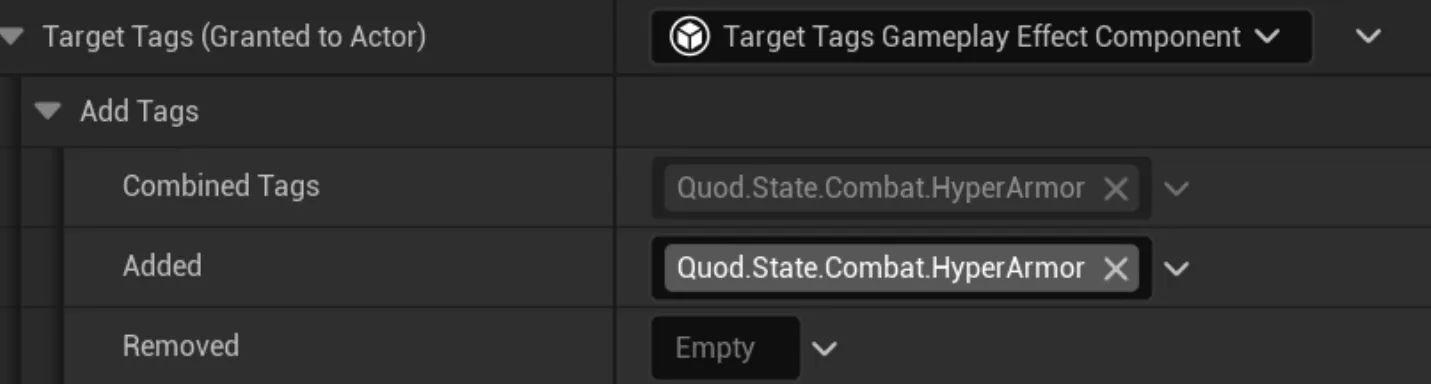
This component grants its configured tags to the target. Apply the effect to a character and the character receives those tags.
The Add Tags property has Combined, Added and Removed lists. GAS uses this pattern for inheritance.
Combined is the final set of tags. Put a tag in Added to include it, and Combined updates automatically. If a parent effect grants a tag you do not want, put it in Removed.
Needing to handle inheritance this way is an unfortunate side effect of how Unreal tracks inherited properties, so you may need to get used to working this way.
In the end, in most cases you will simply add the tags you want in the Added field and be done with it.
Target Tag Requirements Component
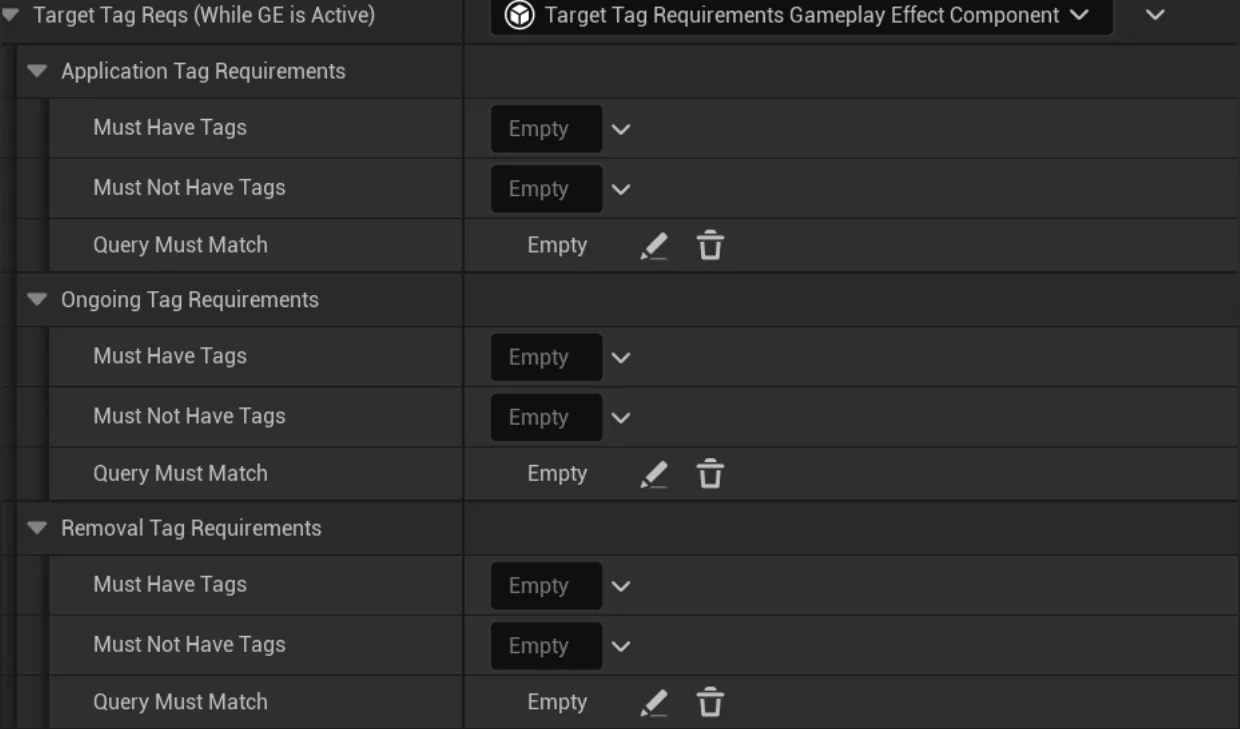
This component will check the presence of tags on a target to verify if the effect can be applied or not. It can also activate or deactivate the effect based on the tags the target currently has, or remove the effect when certain tag conditions are met.
Application Tag Requirements
This will be checked the moment the effect is applied.
For the application to succeed all tags in Must Have Tags have to be on the target and NONE of the tags in Must not Have Tags have not to be present on the target.
Finally, the Query Must Match query property needs to be true. This query is optional, but allows to configure more complex logic like certain tags A being present OR certain tag B being present but not BOTH being present at the same time.
Ongoing Tag Requirements
This works similarly to the Application Tags but will be an ongoing check. If the conditions are fulfilled the effect will be activated and if the conditions are not met the effect will be disabled.
Disabled effects do not apply their modifiers and certain Effect Components may behave differently based on the effect being active or not.
It only makes sense for HasDuration or Infinite effects.
Removal Tag Requirements
Similar to the Application and Ongoing categories this will check conditions to see if the effect has to be removed.
Quite useful to dynamically remove effects the moment certain tags are present, or to remove buffs the moment other tags are removed from the target. Like linking an “Extra Damage” effect being on the character only until the “State.Combat.Rage” tag is also present.
This category also only makes sense for HasDuration and Infinite effects.
Chance to Apply Component

If this component exists on the effect, the moment the effect is going to be applied a random chance check will be executed and the effect will only be applied if that “dice roll” succeeds.
The chance to apply can be configured with a float or via a CurveTable based on the effect level.
( Effect Level can be configured the moment you apply the effect )
Grant Abilities Component
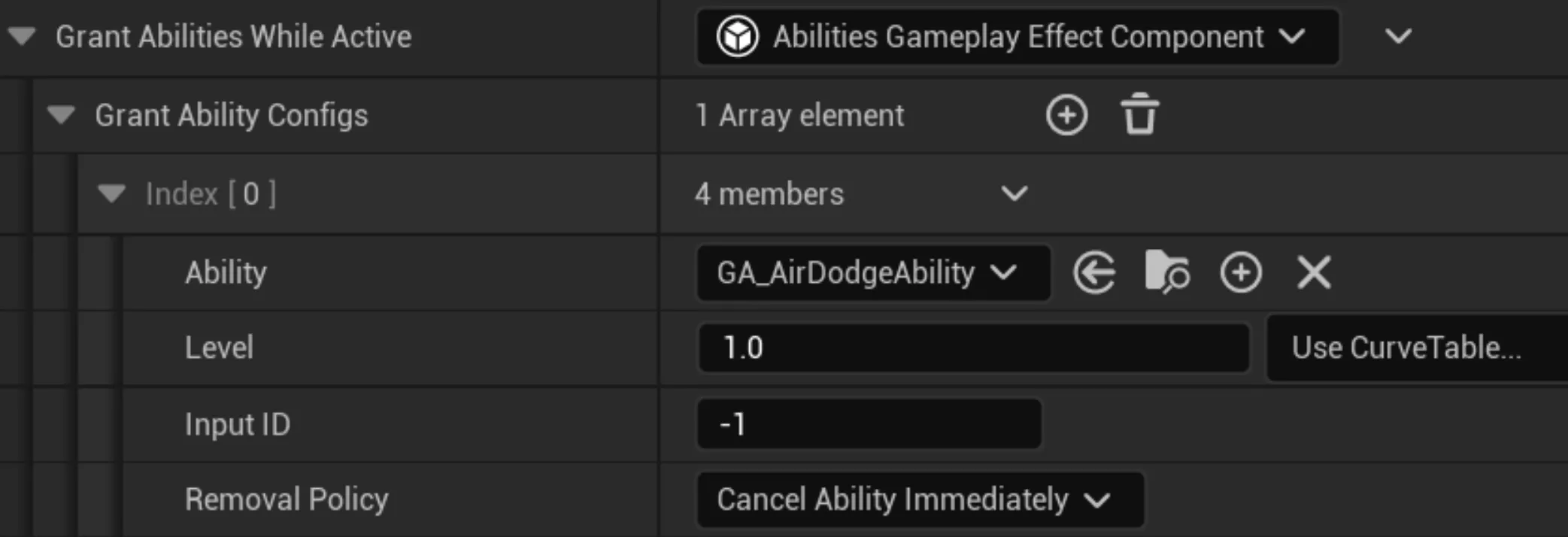
Grant Abilities Component allows you to Grant Abilities to the target of the effect while that effect is applied to the target.
This is incredibly useful, as you could create a trigger box that applies a “Double Jump Effect” that simply grants the double jump ability, and suddenly you quickly have a “Double Jump Area” implemented in your game.
You can also decide how the ability is removed, like canceling the moment the effect is removed or waiting for the ability to end naturally after removing the effect.
Additional Effects Component
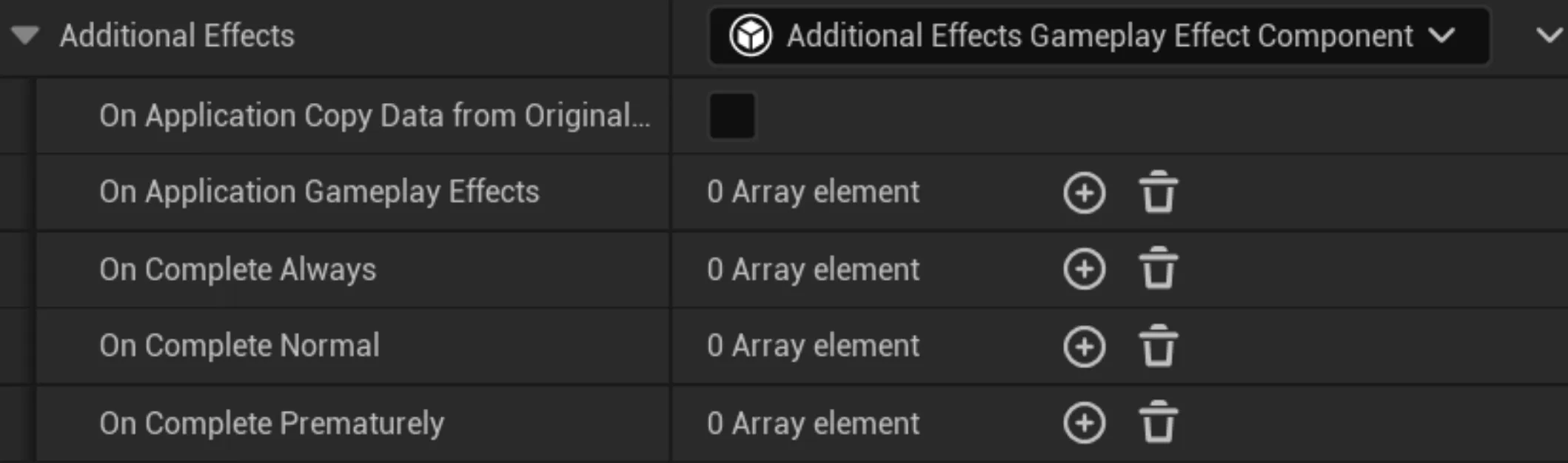
This component will allow you to apply additional effects at certain points of the effect lifecycle.
If you want to apply some extra effects the moment the effect is applied then put them on the On Application Gameplay Effects property.
For applying extra effects when the effect completes you have three options:
- On Complete Always: As the name implies, the moment the effect is removed this extra effects will be applied
- On Complete Normal: Usually for effects that have duration, when the duration ends these effects will be applied
- On Complete Prematurely: If the effect still had some duration but you remove it or it gets cancelled due to other components like the Target Tag Requirements Component then these effects will be applied instead of the On Complete Normal
By the way, I always recommend checking the On Application Copy Data From Original Spec checkbox, as that way your extra effects will receive all the Set By Caller values from the original effect.
Asset Tags Component
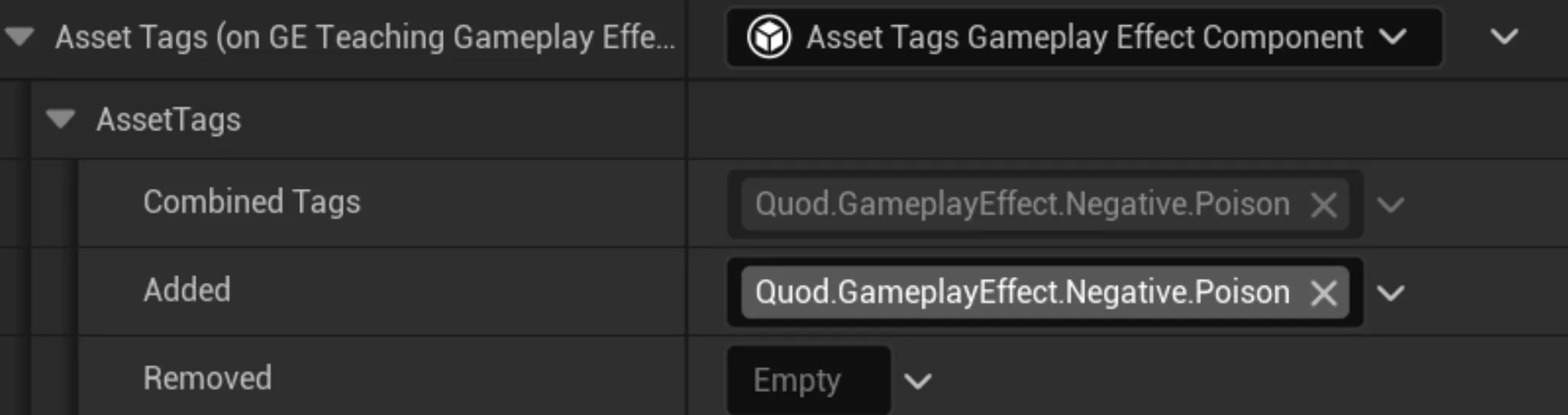
The same way you can apply tags to the target of the effect, the effect itself can have tags.
We can use these tags to query effects. Other components also check them to decide whether to apply their behavior, as we will see below.
Immunity Component
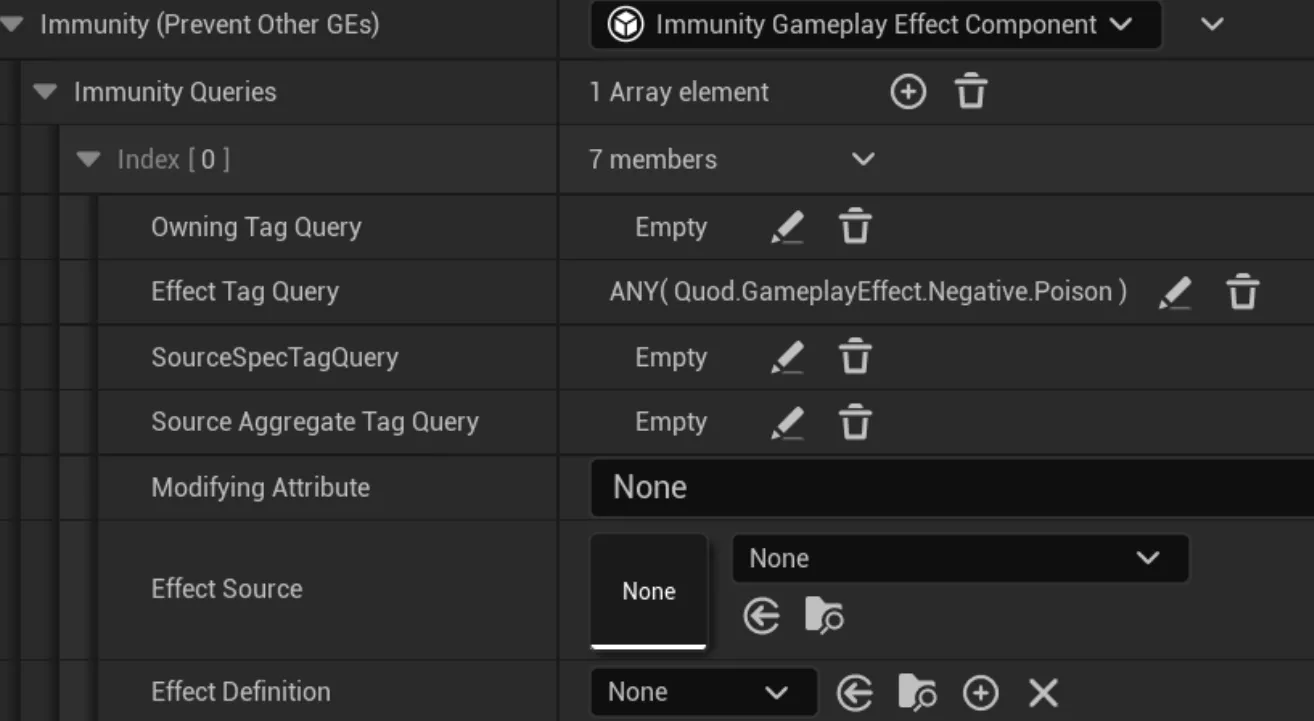
Immunity allows you to block the application of other effects. You can add multiple immunity queries.
This allows you to check multiple things, so let’s go one by one:
- Owning Tag Query: Check tags that the effect being applied grants to the character
- Effect Tag Query: Check tags that the effect being applied has
- Source Spec Tag Query: This is checked against the spec captured tags of the source
- Modifying Attribute: If the effect being applied modifies this attribute, then the immunity query will prevent application
- Source Aggregate Tag Query: This checks against the tags that the source of this effect has ( The source could be a weapon for instance, then tags on the weapon would be checked )
- Effect Source: If the Source Object that is applying this effect is the one selected here, the immunity query will be true
- Effect Definition: Allows you to check for a specific class of Gameplay Effect for the immunity query
Some of these queries require knowing how GAS applies effects. In most cases I recommend Effect Tag Query, which checks tags on the effects themselves.
For instance if you create a poison effect, you can tag it as EffectNegativePoison and then when you equip the armor that grants immunity to poison, simply apply an Infinite effect with an immunity query checking for that EffectNegativePoison tag on the Effect Tag Query.
Remove Other Effects Component
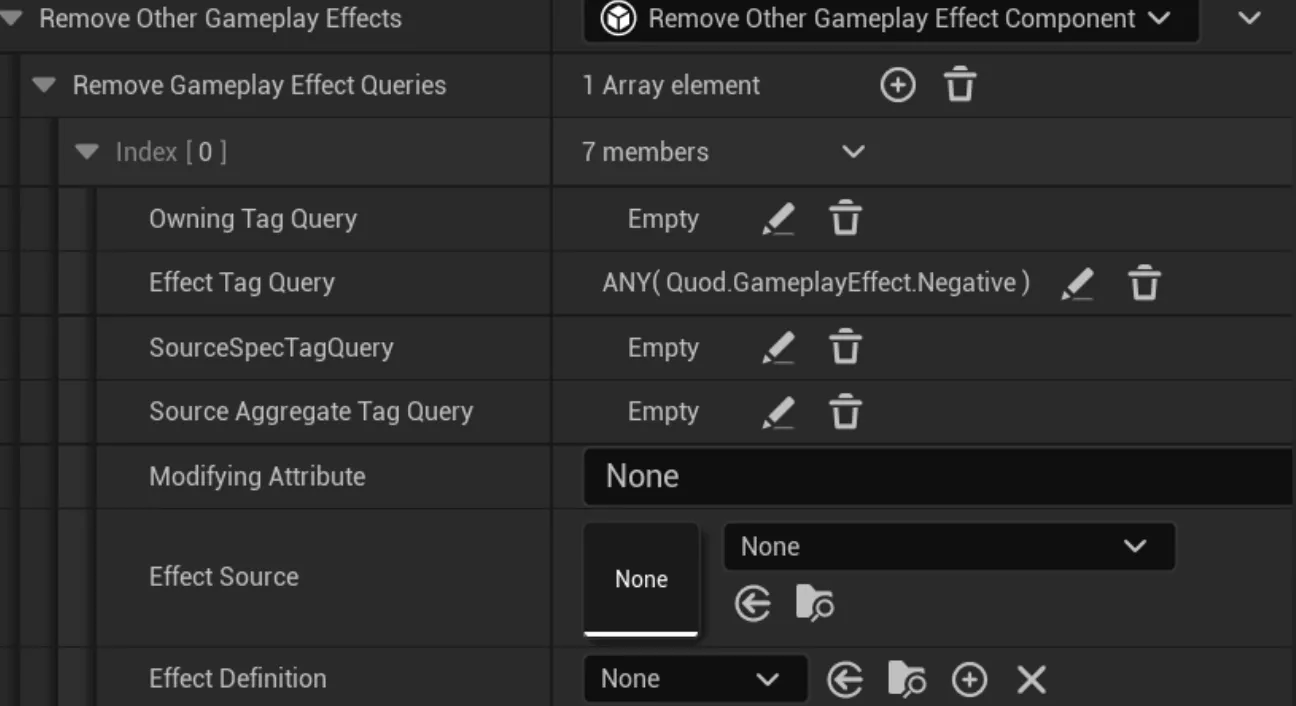
The same way you can become immune to the application of certain effects, you can also remove other effects when a Gameplay Effect is applied.
The configurable properties are the same ones as the previous component.
Following the poison example from before, you could implement an item in an RPG Game that cures all status effects by adding a Remove Other Effects Component with the Effect Tag Query for the tag EffectNegative.
If your negative effects have that tag ( remember that Gameplay Tags are hierarchical, so EffectNegativePoison matches the EffectNegative query ) then all negative effects will be removed the moment you apply this effect.
Block Ability Tags Component
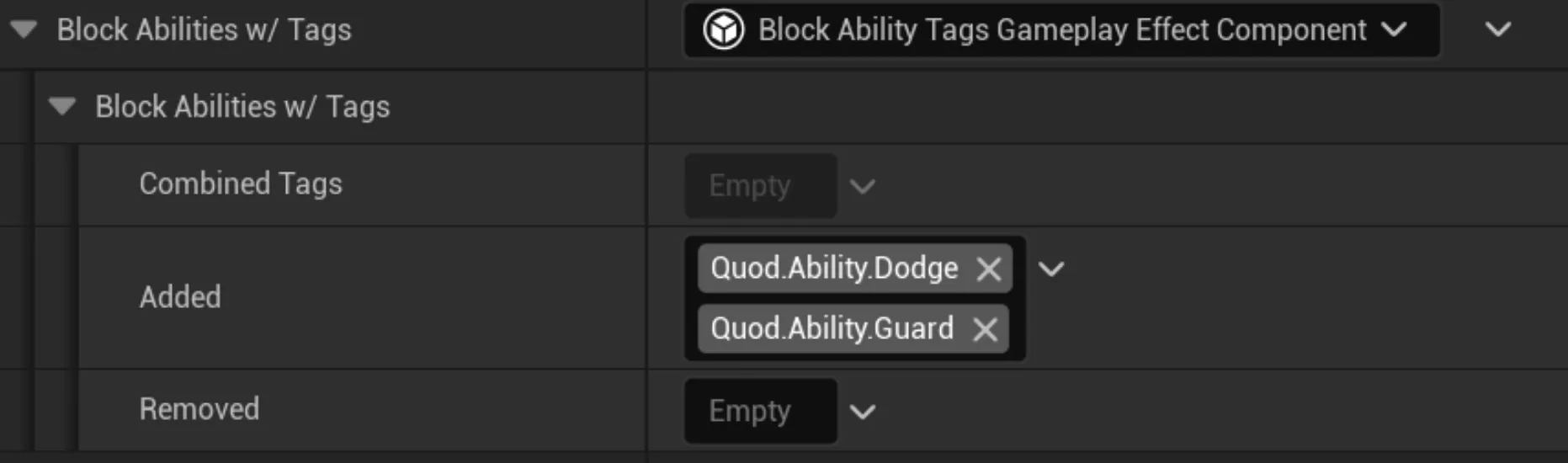
The same way that effects can have tags, Gameplay Abilities can also have tags.
This component blocks abilities with the configured tags and prevents their activation.
If you want a spell that applies a “Prevent Cast Magic” debuff you can simply create a HasDuration effect with a 10s duration and a Block Ability Tags Component that will block all abilities tagged with AbilityMagic.
As always, abilities need to be properly tagged for this to work properly.
Custom Can Apply Component

The same way that you have some built-in tags queries to check if an effect can be applied, this component allows you to write custom code to check things that may be project-specific.
For instance, you could write a Custom Application Requirement that requires the target of the effect to be of a certain faction, or be targeted by at least 3 enemies or whatever other custom logic you want.
So if none of the other requirement components work for you, before trying to implement a custom component you can implement a Custom Application Requirement.
UI Data Component

This component allows you to link UI data to the effect.
By default it only supports a description, but the ideal way to use this is to inherit from this component and configure it with any custom data you need.
For instance you can inherit and add data for an icon and then iterate all applied effects that have UI Data and display all the icons under the health bar of the character.
Gameplay Effect Duration Policy: Instant, Has Duration, Infinite
Duration is not a component. It lives on the effect itself, in the Duration Policy property, and it has three values.
- Instant: the effect applies once and is done. It writes to the Base Value of any attribute it modifies, so the change is permanent, and you don’t get a handle back. Instant effects can’t grant tags and don’t stay applied, so components that only make sense while an effect is active ( ongoing tag requirements, granted abilities, block ability tags ) do nothing on an Instant effect.
- Has Duration: the effect stays applied for a set time, then expires on its own. You give it a Duration Magnitude ( a scalable float, a Set By Caller value, or an attribute-based value ). Applying it returns a handle you can hold onto.
- Infinite: the same as Has Duration, but it never expires by itself. You remove it manually, or a component like Target Tag Requirements removes it when its conditions stop being met.
If you want the full story on Base Value vs Current Value and what a Period does to all of this, I wrote a separate post on Gameplay Effect durations. The short version: most Has Duration and Infinite effects modify the Current Value so the change reverts when the effect ends, but adding a Period makes each tick write to the Base Value instead.
Gameplay Effect Stacking: Types, Limits and Duration Refresh
Stacking only applies to Has Duration and Infinite effects. An Instant effect can’t stack, because it finishes the moment it’s applied. Like Duration Policy, stacking is configured on the effect, not in a component.
The first choice is the Stacking Type:
- None: every application is its own independent effect. Apply the same poison five times and you get five separate effects running side by side.
- Aggregate by Source: the target keeps one stack count per source. Two different enemies poisoning the same target build up two separate stacks.
- Aggregate by Target: the target keeps a single shared stack count, no matter who applied the effect.
Once you pick a type, the rest of the settings control how the stack behaves:
- Stack Limit Count: the maximum number of stacks. Applications past the limit are handled by the overflow settings, which can deny the application, apply a separate overflow effect, or clear the stack.
- Stack Duration Refresh Policy: whether a new application resets the effect’s remaining duration ( Refresh on Successful Application ) or leaves it ticking down ( Never Refresh ).
- Stack Period Reset Policy: whether a new application restarts the period timer or lets it keep running.
- Stack Expiration Policy: what happens when the duration finally runs out. You can clear the whole stack at once, remove a single stack and refresh the duration ( so stacks tick down one at a time ), or just refresh the duration.
Check the expiration policy carefully. A five-stack poison set to Clear Entire Stack loses all five when the timer ends. With Remove Single Stack and Refresh Duration, it loses one at a time. I would usually choose that for a damage-over-time debuff.
Recap
- Since UE5.3 the behavior lives in modular components you add to an effect, but two things stay on the effect itself: its Duration Policy and its stacking settings.
- Duration Policy decides everything downstream. Many components ( ongoing and removal tag requirements, granted tags, granted abilities, block ability tags ) only do something on Has Duration or Infinite effects, because an Instant effect is gone before they can act.
- Tag matching is hierarchical. An
EffectNegativePoisontag matches anEffectNegativequery, which is what makes the Immunity and Remove Other Effects components convenient: tag your debuffs once and query the parent.